My First Post      My Facebook Profile      My MeOnShow Profile      W3LC Facebook Page      Learners Consortium Group      Job Portal      Shopping @Yeyhi.com

Pages


Showing posts with label blog. Show all posts

Thursday, May 10, 2018

How to add custom Ads.txt in Blogger : A must for blogger adsense monetization enthusiasts

When you want to add monetization to your blog and you have a publisher Id, you want to set it up fast. Am i correct? Afterall, why to loose even a single day of your sweet traffic.


But the problem sometimes is that the website you own is on Blogger and you have no ideas as to how and where to add the custom ads.txt file required by the blogger. Sounds known! Yeah, this is a usual problem with many. So lets start step by step:


First of all know that ,if your blog is monetized with third-party providers or you’ve manually integrated AdSense in your blog, you will need to manually set up the content of the ads.txt file.


  • Sign in to Blogger.
  • In the top left, click the Down arrow Down Arrow .
  • Click the blog you want to set up an ads.txt file on.
  • On the left, click Settings.
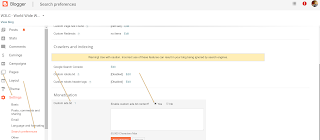
  • Under "Settings," click Search preferences.
  • Under "Monetization," find "Custom ads.txt" and click Edit.
  • Click Yes.
  • Copy the settings from your third-party monetization provider and paste them in the text box. This is typically like "google.com, pub-<0000000000>, DIRECT, 00000000"
  • Click Save settings.


Cheers! It's done.


If you want to check the content of your ads.txt file, go to http:///ads.txt.


Also, do note that if your blog is not monetized, or it’s only configured to use AdSense using the Blogger-AdSense integration, then you do not need to manually set up ads.txt. Blogger will do this for you. Read more about ads.txt for AdSense.


Now certainly, wait for 24 hours before the money starts flowing in your blog. Surely, you might want to thank me. For that just like the post and share to others who might help themselves as well.


Thursday, December 15, 2016

Little 'r' me - Meaning and origin of this in email

Very often in our corporate mail boxes we get to see where members of a large email distribution ask to Little 'r' them.
This simply means to reply to them.

Advantage:
1. Reply goes only to the sender and replies do not become a spam to all in the mailing list
2. The sender can discuss some personal aspects also individually with the recipient.

Now, another question is from where did this term come from. And, it is basically this point which is interesting that how did it gain such widespread adoption.

Here are two possible reasons that convince me th emost:

Thought A:

It comes from early UNIX Email systems. From the early days of the The Internet, we used single-letter commands. The lower-case, or little, "r" command meant to reply
 to the sender. Alternatively, the capital "R" meant to reply to the sender and the other recipients.

It is this huge love with UNIX, this term has not been forgotten in the evolution of the Internet. It was hence carried forward by lots of UNIX geeks into a common internet slang.


Thought B:

Gmail has also been around now for more than a decade now. And, habits of Gmail can also be one of the reason for the evolution of this internet term.
Actually, if you want to reply just to the sender in Gmail, you just need to hit 'r'. And, if you want to reply all then you needed to hit 'a'. So, here again the term Little 'r' fits the bill.

Now, before ending let me again remember it for you - You can Little 'r' me at Toughjamy@Yahoo.com.

Monday, March 11, 2013

Sort Blog Posts using Yahoo Pipes - Blogger Posts in alphabetical, chronological, date wise order


Problem Statement: Sort the Blog posts in a desired order like chronological, or Alphabetical order.
One of the many tools: Yahoo Pipes. We will use Yahoo Pipes to solve this problem.

Yahoo! Pipes is a web application from Yahoo! that provides a graphical user interface for building
data mashups that aggregate web feeds, web pages, and other services, creating Web-based apps from
various sources, and publishing those apps. Hence, Yahoo Pipes is an amazing Data Mining Tool.
Or, lets say a Data analysis tool. Now let us see what does it take to get to our solution of sorting the Blog posts in a desired order like chronological, or Alphabetical order. And that too using Yahoo Pipes!!

Step 1: Get the Blog Feed using Atoms
First we get the blog feed URL. In this case we will use :
http://http://new-it-discussions.blogspot.in/atom.xml
Then to include all posts we add this parameter to the above feed url :
?redirect=false&start-index=1&max-results=999
This will fetch 1000 posts from the blog. Now the complete feed url is :
http://http://new-it-discussions.blogspot.in/atom.xml?redirect=false&start-index=1&max-results=999


Step 2: Launch the Yahoo Pipes project to create data mashup for aggregating and analysing data
For this Just Create a Yahoo Profile and Register A Pipes Account.

Step 3: Using Yahoo Pipes to create Web based app combining data from different sources and applying analytics
The Left HAndside Menu will have different options and operators.
Use Feed Operator as Input. So, now input to you Pipe will  be the feed from your blog
Now Bring, drag and drop, a Sort Operator.
For reference, please see the image which shows my Pipe in development stage :)

I used the sort by itel.PubDate. This means sorting by Publishing date.
You can sort by Alphabetically and other options. You may also select Ascending or descending.
Now connect the output from this to the final output.
This compleet one Yahoo Pipe.
You can Run and then publish the Yahoo Pipe

Voila!!
Your First Yahoo  PIpe is created.


The Discussions For IT People Blog has created some Pipe for its own usage. You can view them at:
Discussions-For-IT-People-Pipe-BlogListAlphabetical
http://pipes.yahoo.com/pipes/pipe.info?_id=b74f9eeb70b27af587832209b7acfbd0
Discussions-For-IT-People-Pipe-BlogListChronological
http://pipes.yahoo.com/pipes/pipe.info?_id=c948a93a254e97b3ad59df059b2983cc